• Link to Facebook
  • Link to Rss this site
  • Link to Mail
  • Link to Facebook
  • Link to Youtube
Oracle ERP Apps Guide
  • Home
  • About
  • Archives
  • ERP Installation
  • Free Instance
  • Downloads
  • Contact
  • Click to open the search input field Click to open the search input field Search
  • Menu Menu
Apps Functional, Basic Concepts, ERP, Flexfields, INV, Oracle, Oracle Apps

Inventory Pending Transaction

Users can see the number of pending transactions by navigating to the Inventory Accounting Periods Form.
Navigate > Cost > Accounting Close Cycle > Inventory Accounting Periods
Place cursor on the appropriate open accounting period and click on the [Pending] Button. There are three zones titled “Resolution Required”, “Resolution Recommended” and “Unprocessed Shipping Transactions”.
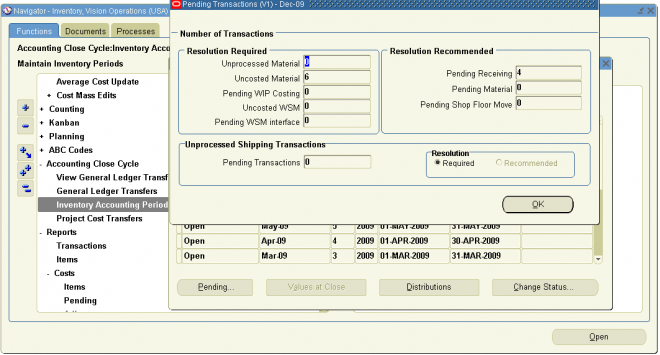
Unprocessed material transactions exist for this period
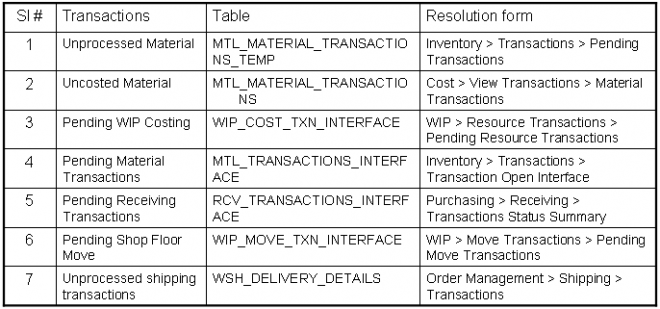
This message indicates you have unprocessed material transactions in the MTL_MATERIAL_TRANSACTIONS_TEMP table. You are unable to close the period with this condition. Please see your system administrator. Inventory considers entries in this table as part of the quantity movement.
Closing the period in this situation is not allowed because the resultant accounting entries would have a transaction date for a closed period, and never be picked up by the period close or general ledger transfer process.
Uncosted material transactions exist for this period
This message indicates you have material transactions in the MTL_MATERIAL_TRANSACTIONS table with no accounting entries (Standard Costing) and no accounting entries and no costs (Average Costing). You are unable to close the period with this condition. These transactions are part of your inventory value.
Closing the period in this situation is not allowed because the resultant accounting entries would have a transaction date for a closed period, and never be picked up by the period close or general ledger transfer process.
Pending WIP costing transactions exist in this period
This message indicates you have unprocessed resource and overhead accounting transactions in the WIP_COST_TXN_INTERFACE table. You are unable to close the period with this condition. These transactions are in your work in process value, and awaiting further processing.
Closing the period in this situation is not allowed because the resultant accounting entries would have a transaction date for a closed period, and never be picked up by the period close or general ledger transfer process.
Unprocessed Shipping Transactions
“Pending Transactions” in the Unprocessed Shipping Transactions zone indicate there are transactions in the WSH_DELIVERY_DETAILS table in a status of shipped.
Pending receiving transactions for this period
When you use Purchasing, this message indicates you have unprocessed purchasing transactions in the RCV_TRANSACTIONS_ INTERFACE table. These transactions include purchase order receipts and returns for inventory. If this condition exists, you will receive a warning but will be able to close the accounting period. These transactions are not in your receiving value. However, after you close the period, these transactions cannot be processed because they have a transaction date for a closed period.
Pending material transactions for this period
This message indicates you have unprocessed material transactions in the MTL_TRANSACTIONS_INTERFACE table. If this condition exists, you will receive a warning but will be able to close the accounting period. These transactions are not in your inventory value. However, after you close the period, these transactions cannot be processed because they have a transaction date for a closed period.
Pending move transactions for this period
This message indicates you have unprocessed shop floor move transactions in the WIP_MOVE_TXN_INTERFACE table. If this condition exists, you will receive a warning but will be able to close the accounting period. These transactions are not in your work in process value. However, after you close the period, these transactions cannot be processed because they have a transaction date for a closed period.

Share this:

  • Share on Facebook (Opens in new window) Facebook
  • Share on X (Opens in new window) X
January 7, 2012/by Oracle ERP Apps Guide
http://oracleerpappsguide.com/wp-content/uploads/2016/09/New-Logo.png 0 0 Oracle ERP Apps Guide http://oracleerpappsguide.com/wp-content/uploads/2016/09/New-Logo.png Oracle ERP Apps Guide2012-01-07 12:57:002012-01-07 12:57:00Inventory Pending Transaction
Apps Functional, Basic Concepts, ERP, Flexfields, INV, Oracle, Oracle Apps

Transfer Transactions to General Ledger

You can perform the general ledger transfer at any time during an open period—not just at period close. Interim transfers allow you to reconcile and transfer information weekly, making the month–end period close process much simpler and
faster.
The general ledger transfer loads summary or detail accounting activity for any open period into the general ledger interface, including both inventory and work in process entries. When more than one period is open, the transfer selects transactions from the first open period, up to the entered transfer date, and passes the correct accounting date and financial information into the general ledger interface.
For example, when you transfer detail entries, the transaction date is the accounting date with a line for line transfer. When you transfer summary entries with two periods open and enter a transfer date in the second period, the transfer process assigns the period one end date for all the summarized transactions in period one and assigns the entered transfer date for the summarized transactions in period two.
For each inventory organization, Cost Management transfers transactions to the general ledger interface table, line for line. If you transfer summary information, Cost Management groups transactions by GL batch, by journal category, by currency code, and by account.
Attention: Transfer in detail only if you have low transaction volumes. Transferring large amounts of detail transactions can
adversely affect General Ledger performance.
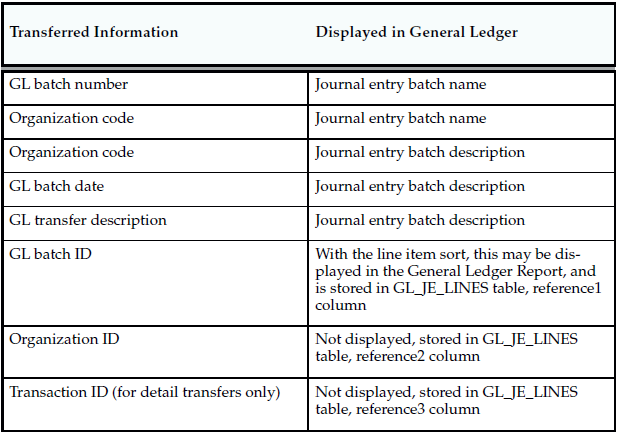
For both detail and summary transfers, Cost Management passes the organization code, GL batch number, batch description, and batch date. When you transfer in detail, you also pass the material or work in process transaction number. In General Ledger, you can see the transferred information, as follows:

Cost Management uses the journal source Inventory for both inventory and work in process transactions.
The journal categories Inventory and Work in Process distinguish between inventory and work in process transactions.
Using Journal Import and Post Journals processes in General Ledger, you can then post this information to the general ledger.
Period Summarization Process
Summarization of transaction records for the open period is the last step in period close. You have the option to perform this process automatically or manually using the profile option, CST:Period Summary. If the profile option is set to Automatic, the period is closed and summarized when you change the period status from Open to Closed.
If the profile option is set to Manual, you can delay summarization – but you must summarize these delayed periods in accounting period order. For example, if you delay summarization for a given period, the following period cannot be summarized until the previous period is summarized. In situations where summarization is delayed, the longer the delay – the larger the number of transaction records needed for reconciliation purposes. This situation can cause summarization to take
more time to complete.
If you do not choose to summarize periods, set the period status to Closed not Summarized.
The Period Close Reconciliation report is used to compare account balances with inventory value at period end. You can run the report in simulation mode by generating it for an open period. The report can be generated at any time during the period.

Share this:

  • Share on Facebook (Opens in new window) Facebook
  • Share on X (Opens in new window) X
January 7, 2012/by Oracle ERP Apps Guide
http://oracleerpappsguide.com/wp-content/uploads/2016/09/New-Logo.png 0 0 Oracle ERP Apps Guide http://oracleerpappsguide.com/wp-content/uploads/2016/09/New-Logo.png Oracle ERP Apps Guide2012-01-07 12:56:002012-01-07 12:56:00Transfer Transactions to General Ledger
Apps Functional, Basic Concepts, ERP, Flexfields, INV, Oracle, Oracle Apps

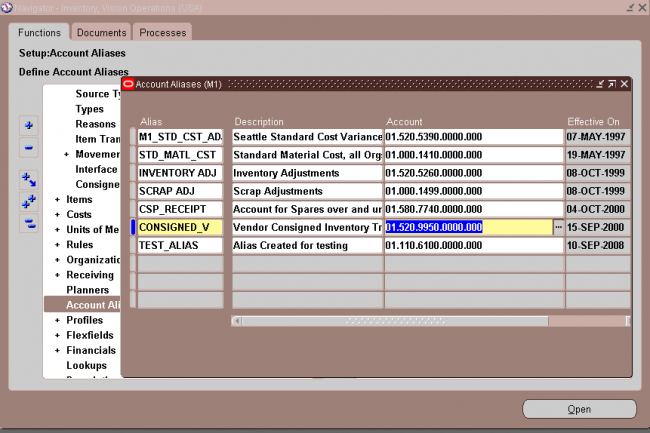
Defining Account Aliases

An account alias is an easily recognized name or label representing a general ledger account number. You can view, report, and reserve against an account alias. During a transaction, you can use the account alias instead of an account number to refer to the account.

Share this:

  • Share on Facebook (Opens in new window) Facebook
  • Share on X (Opens in new window) X
January 7, 2012/by Oracle ERP Apps Guide
http://oracleerpappsguide.com/wp-content/uploads/2016/09/New-Logo.png 0 0 Oracle ERP Apps Guide http://oracleerpappsguide.com/wp-content/uploads/2016/09/New-Logo.png Oracle ERP Apps Guide2012-01-07 12:55:002012-01-07 12:55:00Defining Account Aliases
Apps Functional, Basic Concepts, ERP, INV, Oracle, Oracle Apps

Inventory Period Close

The period close process for perpetual costing enables you to

  1. Summarize costs related to inventory and manufacturing activities for a given accounting period.
  2. Distribute those costs to the general ledger.
  3. Calculates ending period subinventory values.
  4. Closes the open period for Inventory and Work in Process.
  • Generally, you should open and close periods for each separate inventory organization independently. By keeping only one period open, you can ensure that your transactions are dated correctly and posted to the correct accounting period. (For month–end adjustment purposes, you can temporarily hold multiple open periods.)
  • The accounting periods and the period close process in Cost Management use the same periods, fiscal calendar, and other financial information found in General Ledger.
  • Inventory and work in process transactions automatically create accounting entries. All accounting entries have transaction dates that belong in one accounting period. You can report and reconcile your transaction activity to an accounting period and General Ledger. You can transfer summary or detail transactions to General Ledger. You can transfer these entries to General Ledger when you close the period or perform interim transfers.
  • When you transfer to General Ledger, a general ledger (GL) batch ID and organization code are sent with the transferred entries. You can review and report the GL batch number in General Ledger and request Inventory and Work in Process reports by the same batch number. You can also view general ledger transfers in Inventory and drill down by GL batch ID into the inventory and WIP accounting distributions.

Note: Purchasing holds the accounting entries for receipts into receiving inspection and for deliveries into expense
destinations. This includes any perpetual receipt accruals.Purchasing also has a separate period open and close, and uses
separate processes to load the general ledger interface.
Closes Open Period
The period close process permanently closes an open period. You can no longer charge transactions to a closed period. Once you close a period, it cannot be reopened. As a precaution, you can do a GL transfer without closing the period.
Transfers Accounting Entries to the General Ledger
If your inventory organization’s parameter for Transfer to GL is None, perpetual accounting entries are not transferred to the General Ledger. The other choices for the Transfer to GL parameter are Summary and Detail, indicating whether the period close process creates summary or detail transactions for posting to the general ledger. The period close
process transfers the following information:
• work in process transactions
• job costs and variances
• period costs for expense non–standard jobs
• depending on the selected options, the remaining balances for
repetitive schedules
Note: If you have chosen the new Periodic Costing feature, Cost Management warns you of the possibility of inadvertently
posting both Periodic and perpetual costed transactions to the General Ledger. The warning displays if there is at least one
legal entity–cost type combination that has the Periodic Cost Post Entries to GL option checked, where the organization
under that legal entity also has the perpetual cost GL transfer enabled.
Calculates Ending Period Subinventory Values
For each subinventory, the period close adds the net transaction value for the current period to the prior period’s ending value. This, along with values intransit, creates the ending value for the current period.

Share this:

  • Share on Facebook (Opens in new window) Facebook
  • Share on X (Opens in new window) X
January 7, 2012/by Oracle ERP Apps Guide
http://oracleerpappsguide.com/wp-content/uploads/2016/09/New-Logo.png 0 0 Oracle ERP Apps Guide http://oracleerpappsguide.com/wp-content/uploads/2016/09/New-Logo.png Oracle ERP Apps Guide2012-01-07 12:55:002012-01-07 12:55:00Inventory Period Close
Apps Functional, Basic Concepts, ERP, Flexfields, INV, Oracle, Oracle Apps

Stock Locators

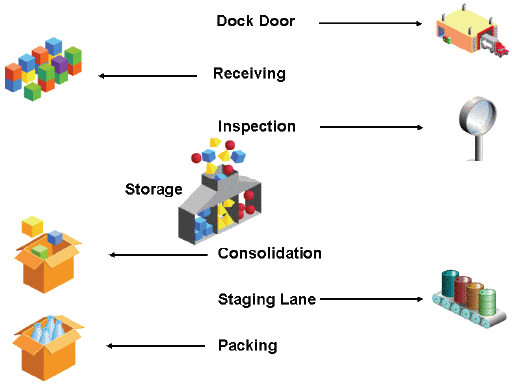
You use locators to identify physical areas where you store inventory items. Item quantities can be tracked by locator. Items can also be restricted to specific locators.

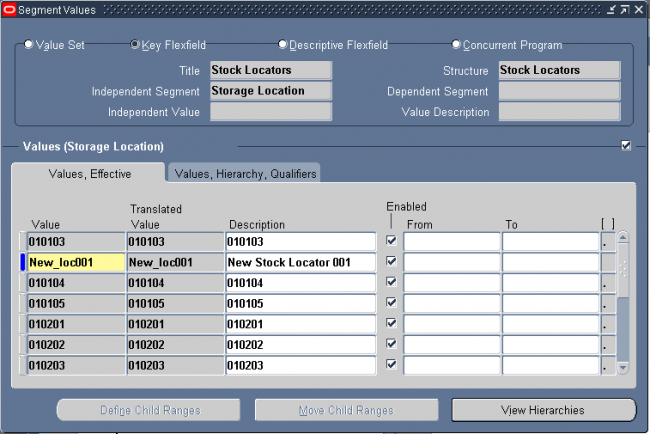
1. Add the segment values of the KFF stock locator.
Navigation : GL -> Financials -> Flexfields -> Key -> Values

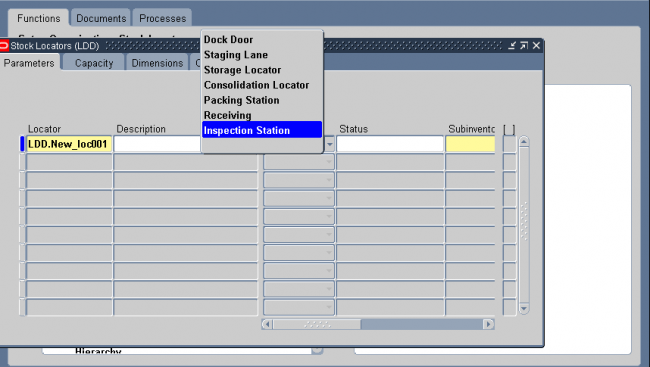
2. Enter the new locator in locator form which can be accessed from below navigation or on subinventory form.

Navigation : Inventory -> Set up -> Stock Locator

 
1. Locator Type: Indicate the locator type available choices are as follows: Dock Door, Receiving, Inspection Station,  Storage Locator, Consolidation Locator, Staging Lane, Packing Station.  Dock doors are used in Oracle Warehouse Management environments only.
 

2. Indicate the material status of this locator, which controls the enabled transactions for all material in this locator. The status is not overridden by the status of any ubinventory, lot or serial, within this locator. The statuses of those objects will be considered when
determining transactions that are not enabled. This field is used if you have Oracle Warehouse Management installed.
3. Enter the subinventory where the locator resides.
4. Enter a picking order value indicating the priority for picking items from this locator relative to another locator. This value is used by Oracle Warehouse Managment to sequence picking tasks. A picking order of 1 means that order management functions pick items from this locator before other locators with a higher number (2, 3, and so on). If you have Oracle Warehouse Management installed, this field determines the picking path through the warehouse and not the order in which material is allocated for a sales order.
5. Enter a dropping order to indicate the priority for dropping items in this locator relative to another locator. Oracle warehouse management uses this value to sequence tasks.
6. Enter the inactive date for the locator. This is the date the locator becomes inactive.


Share this:

  • Share on Facebook (Opens in new window) Facebook
  • Share on X (Opens in new window) X
January 7, 2012/by Oracle ERP Apps Guide
http://oracleerpappsguide.com/wp-content/uploads/2016/09/New-Logo.png 0 0 Oracle ERP Apps Guide http://oracleerpappsguide.com/wp-content/uploads/2016/09/New-Logo.png Oracle ERP Apps Guide2012-01-07 12:53:002012-01-07 12:53:00Stock Locators
Page 23 of 36«‹2122232425›»

Categories

Archives

Signup for Daily Posts

Search Search
pCloud Lifetime
Popular
  • Oracle E-Business Suite Free Access Practice InstanceFebruary 24, 2011 - 4:38 pm
  • Oracle E-Business Suite 12 Free Vision InstanceJuly 22, 2014 - 4:01 pm
  • What is Oracle Apps (ERP) : Basic ConceptsFebruary 17, 2011 - 10:09 pm
  • HZ tables in Oracle ReceivablesApril 1, 2011 - 11:30 am
  • Attachment in Oracle ApplicationApril 6, 2011 - 6:17 pm
Recent
  • R12 – How to Handle NULL for :$FLEX$.VALUE_SET_NAME...August 25, 2023 - 1:20 pm
  • R12 – How to Delete Oracle AR TransactionsMarch 22, 2019 - 8:37 pm
  • How to Define Custom Key Flexfield (KFF) in R12January 19, 2018 - 5:43 pm
  • AutoLock Box Concepts In R12November 10, 2017 - 8:30 am
  • R12 – java.sql.SQLException: Invalid column type in...September 15, 2017 - 9:39 am
Comments
  • ExoWattsGreat content! Keep up the good work!July 3, 2026 - 2:49 am by ExoWatts
  • venkatnot working this script properly, kindly check and confirm...May 5, 2026 - 6:12 pm by venkat
  • Fernandoclick on the Release 12 vision instance button shown on...March 7, 2025 - 4:59 am by Fernando
  • Robert MugerwaThanks for sharing this information about Oracle OUM and...February 14, 2025 - 10:17 pm by Robert Mugerwa
  • shahIs there any ebs erp vision instances available for Practice...January 14, 2025 - 3:12 pm by shah
Tags

Oracle Useful Sites

  • SQL Reference
  • Oracle eTRM
  • PL/SQL Reference
  • Oracle CSI Support
  • OTN E-Business Suite
  • Oracle AOL Documentation
  • Oracle R12.2 Documentation
  • Oracle SQL/PL SQL Examples
  • Oracle 11i Documentation
  • Oracle R12 Documentation

Recent Comments

  • ExoWatts on R12 – How to Handle NULL for :$FLEX$.VALUE_SET_NAME In Oracle ERP
  • venkat on Performing Back Order on a SO Line using Wsh_Delivery_Pub API
  • Fernando on Oracle E-Business Suite 12 Free Vision Instance
  • Robert Mugerwa on Downloads
  • shah on Oracle E-Business Suite 12 Free Vision Instance
RSS Feed Logo RSS Feed Logo Subscribeto RSS Feed

Latest Posts

  • R12 – How to Handle NULL for :$FLEX$.VALUE_SET_NAME In Oracle ERPAugust 25, 2023 - 1:20 pm
  • R12 – How to Delete Oracle AR TransactionsMarch 22, 2019 - 8:37 pm
  • How to Define Custom Key Flexfield (KFF) in R12January 19, 2018 - 5:43 pm
  • AutoLock Box Concepts In R12November 10, 2017 - 8:30 am
  • R12 – java.sql.SQLException: Invalid column type in OAFSeptember 15, 2017 - 9:39 am
January 2012
S M T W T F S
1234567
891011121314
15161718192021
22232425262728
293031  
« Dec   Feb »
© Copyright 2025 - Oracle ERP Apps Guide | About | Contact | Archives | Privacy Policy
  • Link to Facebook
  • Link to Rss this site
  • Link to Mail
  • Link to Facebook
  • Link to Youtube
Scroll to top Scroll to top Scroll to top
Ads Blocker Image Powered by Code Help Pro

Ads Blocker Detected!!!

Dear visitor,

We get it: Ads are not what you are here for. But these ads helps us keep the lights on, to pay our bills and keep this site up and running to provide unique and rare contents free for everyone with no limits.

Please consider disabling the AdBlocker just while you are browsing our site or putting us on your whitelist. You may not be aware, but any visitor supports our site by just viewing ads. Without you, we could not keep the site up as it is.

Thank you for understanding.

OEAG Team
Close

This site uses cookies and other tracking technologies to assist with navigation and your ability to provide feedback, analyse your use of our services, and provide content from third parties. By continuing to browse the site, you are agreeing to our use of cookies.

Got ItLearn more

Cookie and Privacy Settings


How we use cookies

We may request cookies to be set on your device. We use cookies to let us know when you visit our websites, how you interact with us, to enrich your user experience, and to customize your relationship with our website.

Click on the different category headings to find out more. You can also change some of your preferences. Note that blocking some types of cookies may impact your experience on our websites and the services we are able to offer.

Essential Website Cookies

These cookies are strictly necessary to provide you with services available through our website and to use some of its features.

Because these cookies are strictly necessary to deliver the website, refusing them will have impact how our site functions. You always can block or delete cookies by changing your browser settings and force blocking all cookies on this website. But this will always prompt you to accept/refuse cookies when revisiting our site.

We fully respect if you want to refuse cookies but to avoid asking you again and again kindly allow us to store a cookie for that. You are free to opt out any time or opt in for other cookies to get a better experience. If you refuse cookies we will remove all set cookies in our domain.

We provide you with a list of stored cookies on your computer in our domain so you can check what we stored. Due to security reasons we are not able to show or modify cookies from other domains. You can check these in your browser security settings.

Google Analytics Cookies

These cookies collect information that is used either in aggregate form to help us understand how our website is being used or how effective our marketing campaigns are, or to help us customize our website and application for you in order to enhance your experience.

If you do not want that we track your visit to our site you can disable tracking in your browser here:

Other external services

We also use different external services like Google Webfonts, Google Maps, and external Video providers. Since these providers may collect personal data like your IP address we allow you to block them here. Please be aware that this might heavily reduce the functionality and appearance of our site. Changes will take effect once you reload the page.

Google Webfont Settings:

Google Map Settings:

Google reCaptcha Settings:

Vimeo and Youtube video embeds:

Other cookies

The following cookies are also needed - You can choose if you want to allow them:

Privacy Policy

You can read about our cookies and privacy settings in detail on our Privacy Policy Page.

Privacy Policy
Accept settingsHide notification only